Seats and the Seat Chart (Admin Guide)
A seat links a person to a room on a defined footing. CGOS models three seat types, plus a Standby state for succession, and surfaces continuity risk on a Legal Seat Risk dashboard. This guide is how a Perpetum admin manages all of it.
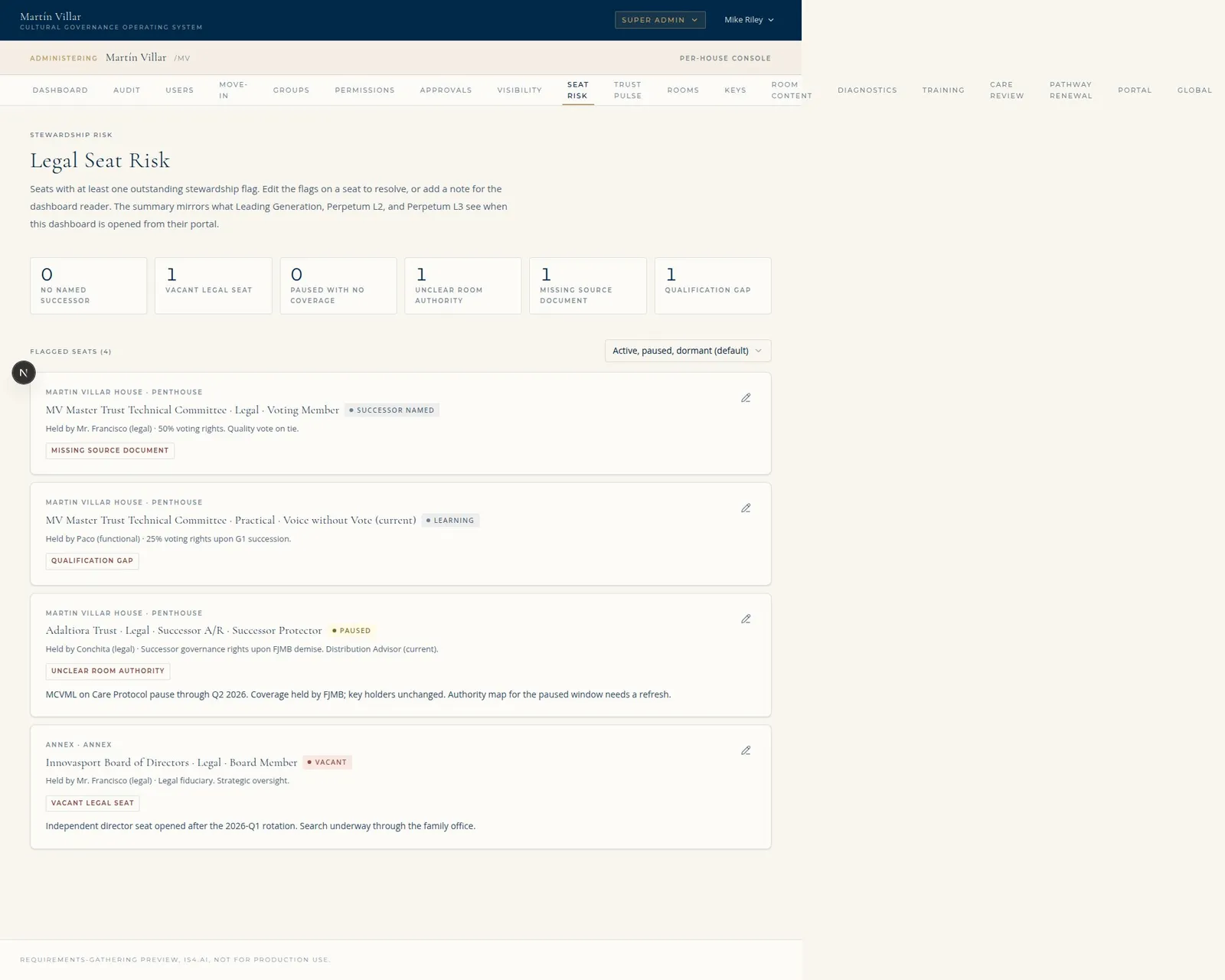
The Legal Seat Risk dashboard (/admin/seat-risk): flagged conditions per room and seat (Illustrative, from the IS4 preview environment.)
Who can do this: - Author seats (add, assign a holder, edit, remove): Perpetum L2 / L3. - Activate a Successor seat from Standby: Perpetum L3 only. - Read the Legal Seat Risk dashboard: admin tier; family roles read it at the flag level their role allows.
1. The three seat types
| Type | What it is | Typed fields it carries |
|---|---|---|
| Legal Seat | A seat in a binding legal or governing document, with real legal consequence | Role, holder, voting/fiduciary rights, term, governing source (the agreement that creates it, linkable to the Archive) |
| Functional Seat | A formal but non-legal accountable role | Role, holder, authority scope (what it is empowered to do), purpose |
| Member or Participant | A permissioned participant on neither a Legal nor Functional seat | Holder, participation category |
2. Add or assign a seat
- Open House Build (
/admin/house) and edit the room you want to seat. - In the room form, open the Seats section and click Manage seats. (Direct
URL:
/admin/rooms/<roomId>/seats.) - On the seat management surface, add a seat:
- Choose the seat type (Legal / Functional / Member or Participant).
- Assign the holder (the person who sits in it).
- Fill the typed fields for that seat type (see the table above).
- Save. The seat now appears in the room's seat list and on the family's Seat Chart.
You can edit a seat's holder and fields, or remove a seat, from the same surface.
Known gap (issue #24): assigning a holder does not currently verify that the person holds the room's access key / seat-eligibility. The system will let you seat someone who does not meet the room's key requirement. Until #24 is resolved, verify key eligibility manually before assigning (check the room's keys in Admin > Keys, and the person's holdings).
3. Seat status
A seat carries a status: Held, Vacant, Paused, Learning (holder is
under qualification), or Successor named. Set or change a seat's status from the
Legal Seat Risk surface (/admin/seat-risk), which is where continuity and
coverage are managed together (see section 5).
4. Successor (Standby) seats
A Successor seat exists in the room structure but is not yet active. It shows in the seat list in the Standby state (square Standby badge), carries the same typed fields as its active counterpart, and is view-only (it offers "View Card" and "Read Agreement," not "Enter Room"). It holds no vote and no fiduciary authority until activated.
To activate a Successor seat (L3 only):
flowchart LR
  S[Successor seat in Standby] -->|trigger event occurs| A[L3 activates at /admin/successor-seats]
  A --> N[Named successor takes the active seat]
S -.->|view-only until then| V[View Card / Read Agreement]- Open the Successor Seats tab (
/admin/successor-seats). - Find the Standby seat whose trigger event has occurred.
- Activate it. The seat moves from Standby to active and the named successor takes the seat with its term and authority.
Only Perpetum L3 can activate a Successor seat (the
managecapability on the seat resource). L2 can author seats but not activate successions.
5. The Legal Seat Risk dashboard
The Legal Seat Risk surface (/admin/seat-risk) makes continuity and authority
exposure visible. It lists flagged conditions, each naming the room and the seat or
field at risk. The six flags are:
- No named successor (a Legal Seat with no Successor naming a person)
- Vacant Legal Seat (a Legal Seat with no current holder)
- Paused Legal Seat with no coverage
- Unclear room authority
- Missing source document (no named, viewable governing agreement)
- Qualification gap (holder under qualification for a required Legal Seat)
Per-role visibility: the Leading Generation sees all six flags. The Rising Generation sees two (unclear room authority and qualification gap). Other family roles do not see the dashboard. Admin tier sees the full dashboard.
Use this surface to set seat status and to work down the flagged conditions (name successors, fill vacancies, attach governing documents).
6. How seats appear to the family
- Seat Chart by person: a person's own seats show on their Dashboard (My Seat Chart); a selected person's seats show in Living Structure. Columns: Room, Estate Place, Level, Role, Seat Type, Room Leader, Rhythm.
- Seats by room: each Room Card lists that room's seats in its seat blocks (Legal / Functional / Member), with the typed sub-fields the viewer is permitted to see.
- Enter Room from a seat works only when the viewer holds the room's enter key; a Standby seat never offers Enter Room.
7. Quick troubleshooting
| Symptom | Likely cause | Fix |
|---|---|---|
| No "Manage seats" link on a room | Room is in create mode, not saved yet | Save the room first; the Seats section appears on edit |
| Cannot add/edit a seat | Not L2/L3 (no seat create/update grant) |
Use an L2/L3 account |
| Cannot activate a Successor seat | Activation is L3-only | Use an L3 account on the Successor Seats surface |
| Seated someone who should not qualify | Key eligibility is not enforced at save (issue #24) | Verify the person's key holdings manually before assigning |
| A Legal Seat shows on the risk dashboard | A flagged condition (vacant, no successor, missing doc, etc.) | Resolve the named condition (fill the seat, name a successor, attach the agreement) |
| Family member cannot see the risk dashboard | By design; only LG (6 flags), RG (2 flags), and admin tier see it | Expected per the permissions matrix |