How to Add and Manage Room Keys
A key is an access rule on a room: it controls who may read the room's card, enter the room, or be eligible for a seat in it. Keys are built from a requirement (age, qualification, election, and so on), and are held by specific users once the family or governing authority approves access.
Who can do this: the Keys admin is Perpetum L3 only (
/admin/keysself-gates on the L3 role). Family admins, L1, and L2 cannot manage keys.
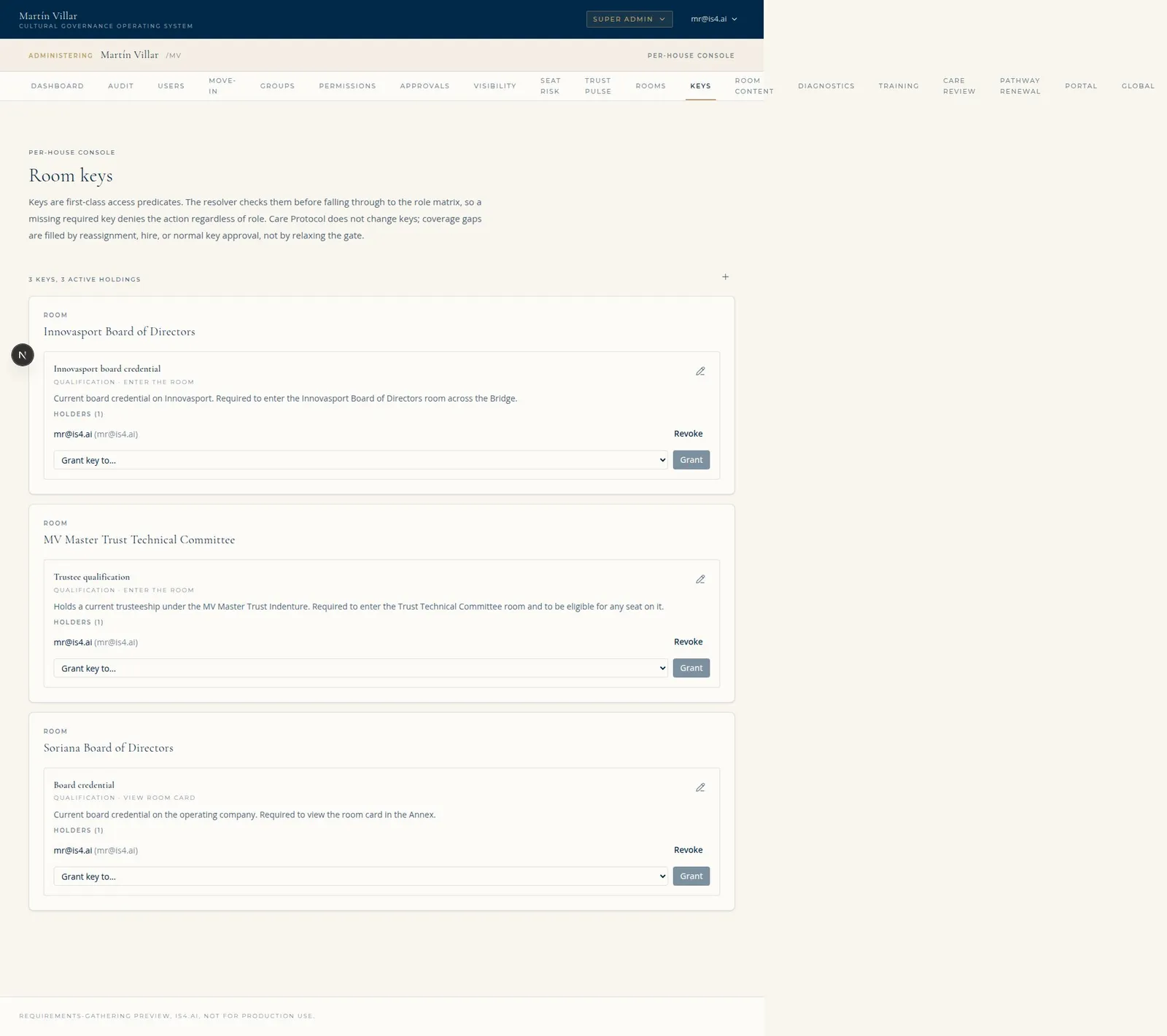
The Room Keys admin (/admin/keys): each room's keys with kind and requirement, current holders, and Grant / Revoke (Illustrative, from the IS4 preview environment.)
1. Open the Keys admin
- Log in at
<slug>.cgos.casa(for exampletest-001.cgos.casa) as a Perpetum L3 (or super-admin holding L3). - Enter the admin console (gold "Administering <family>" banner).
- In the Admin sections tab bar, click Keys. (Direct URL:
<slug>.cgos.casa/admin/keys. Do not type a/portal/prefix;/portal/...404s.)
The screen lists every room, and under each room its keys and, per key, the users who currently hold it.
2. Add a key to a room
Use the add / edit key form and fill these fields:
- Room: the room this key gates (dropdown).
- Name: what the key is called, for example "CPA License" or "Board Seat" (required). This is the text the family sees on the room card.
- Kind: the requirement type. One of:
- Age
- Birthright
- Qualification
- Election
- Training
- Capacity
- Owner approval
- Family Office approval
- Governing document
- Other
- Required for: what the key gates. One of:
- View room card (
view_card): without the key, the room's card content is redacted (hidden) for that user. - Enter the room (
enter_room, the default): the card is visible, but entering the Room Page requires the key. - Seat eligibility (
seat_eligibility): the key is required to be eligible for a seat in the room. - Description (optional): a short note on how the key is granted, for example "Active CPA license on file." This appears next to the name on the room card.
- Save.
Tip (and a known limitation, issue #16): a single key carries one Kind. If a room should require more than one requirement (for example age AND a qualification), create separate keys on that room, one per requirement. The room then requires all of them.
Tip (issue #18): the room card currently shows the key name and description, not the structured Kind. If you want the requirement type to read clearly to the family, include it in the name or description (for example name the key "Election: Board Seat").
3. Grant a key to a user
Creating a key defines the requirement; it does not give anyone access. You must grant the key to each user who has met the requirement.
flowchart LR
  C[Create key on a room] --> G{Grant to a user}
  G -->|user qualifies| H[User holds the key]
  H -->|access per requiredFor| R[Read card / Enter room / Seat eligible]
H -.->|Revoke| C2[User loses access]- Under the key, find the grant control.
- Pick the family member from the list of users who do not yet hold the key.
- Grant. The user now holds the key and can read/enter/seat per the key's "Required for" setting.
The panel lists everyone who currently holds the key, with the date granted.
4. Revoke a key from a user
- Under the key, find the user in the holders list.
- Click Revoke. The user immediately loses the access that key granted.
Revoking does not delete the key or affect other holders.
5. Edit or delete a key
- Edit: change the key's Name, Kind, Required-for, or Description, then save. Editing the key does not change who holds it.
- Delete: removing the key removes the requirement from the room (and the associated holdings). Use this when a room should no longer be gated by that key.
6. How a key is visualized for the family
- On the room card: each key appears in the "Key / Access Requirements"
section as
Name: Description. This is the primary place the family sees a key. - Gating effect:
- A
view_cardkey the user does not hold redacts the room card (locked). - An
enter_roomkey shows the card but blocks entry; without it, the user sees "Sorry, you do not have access to this room." - A
seat_eligibilitykey gates seat eligibility. - On the House diagram: there is currently no key icon on the House rendering or per room (tracked in issue #19). For now, keys are visible on the room cards, not as icons on the house illustration.
Testing note: as an L3/super-admin you may hold or bypass keys, so a gated room can look unredacted to you. To see the gate as a family member would, view the room as a user who does not hold the key, or read the room card's "Key / Access Requirements" section (always shown).
7. Quick troubleshooting
| Symptom | Likely cause | Fix |
|---|---|---|
| No "Keys" tab in the admin console | Not Perpetum L3 | The Keys admin is L3-only; use an L3 account |
404 at /portal/admin/keys |
Wrong URL (double /portal) |
Use /admin/keys or click the Keys tab |
| Created a key but a user still cannot enter | Key defined but not granted to that user | Grant the key to the user (section 3) |
| Need a room to require two things | One key carries one Kind (issue #16) | Create two keys on the room |
| Family cannot tell what the key requires | Card shows name/description only (issue #18) | Put the requirement type in the key name/description |
| Expected a lock icon on the house, none shows | Not implemented yet (issue #19) | Keys show on the room card for now |