Move-In and Onboarding (Admin Guide)
Move-in is the moment a family stops being read and starts inhabiting its system. In the current product it is not an in-portal step-by-step checklist. It rests on three primitives plus user provisioning. This guide is how a Perpetum admin runs it.
flowchart LR
  A["Architecture approval<br/>LG, off platform"] --> P["Provision and invite users<br/>/admin/users"]
  P --> T["Terms of Use<br/>accepted at first login"]
  T --> R["Two universal review dates<br/>/admin/next-review"]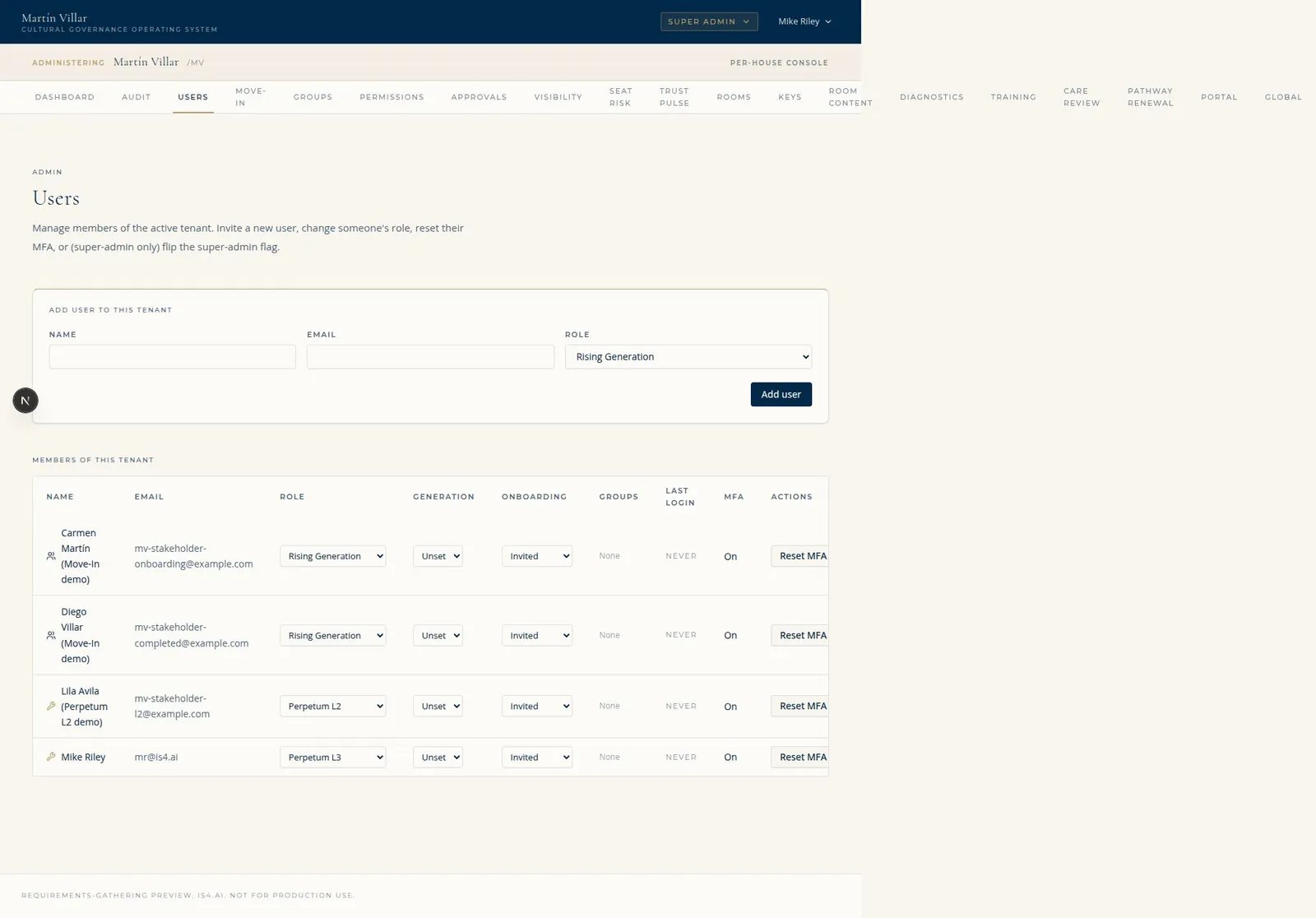
Provision and invite users (/admin/users): role and MFA management for the family (Illustrative, from the IS4 preview environment.)
Important (issue #22): an older Perpetum document describes Move-In as an eight-step process (House Approval, Authorization, User Roster, System Pathway, Portal Setup, User Onboarding, First Entry, Onboarding Audit) with a "Move-In Onboarding Record." That eight-step machine is retired. The product implements the three primitives below. Train against this guide, not the eight-step doc.
Who can do this: the Move-In admin landing is Perpetum L3 only. Setting review dates is L2 / L3. User provisioning is done by a Perpetum admin.
1. Open the Move-In surface
- Log in at
<slug>.cgos.casaas Perpetum L3. - Enter the admin console (gold "Administering <family>" banner).
- In the Admin sections tab bar, click Move-In (
<slug>.cgos.casa/admin/move-in).
This page is a hub, not a workflow: it states the three primitives and links to the surfaces that hold them (Users, Next Review). There is no per-user step machine to walk.
2. Primitive 1: Architecture approval (the rollout gate)
Before a family is rolled into the live system, the Leading Generation approves the built architecture (the House, floors, rooms, the agreements that hold them, seats, access keys, and the visibility model).
- This approval happens with Perpetum, off platform (a confirmation meeting/walkthrough), not as an in-portal editing action.
- Perpetum records it as the gate that releases rollout: do not open the family into the live system until the Leading Generation has confirmed the build.
- There is no in-portal button for this gate; it is an operational checkpoint Perpetum owns.
Practically: complete the House/Estate build (House Build, Rooms, Seats, Keys), walk it with the Leading Generation, get their confirmation, then proceed to provisioning.
3. Provision and invite people (Users)
Accounts are admin-provisioned; there is no self-registration and no shared password.
- From the Move-In page, click Provision and invite users, or open the
Users tab (
<slug>.cgos.casa/admin/users). - Use Invite a new user: enter the person's details and role.
- The invited person receives an emailed link, follows it to set their own password and configure two-factor authentication, then signs in.
- The Users table shows each member's role, MFA state, and onboarding stage (for example "invited"), plus controls to change role, reset MFA, or disable a user.
4. Primitive 2: Terms of Use (first login)
Each person accepts the Terms of Use on their first sign-in into the live system.
- This is automatic: a first-login gate presents the Terms; the person accepts once.
- Acceptance is recorded per person; the Terms stay viewable from their account afterward.
- No admin action is needed here. There is nothing to configure on this primitive.
5. Primitive 3: The two universal review dates
The family operates on one universal quarterly review date and one universal annual review date (not a separate cadence per person).
- From the Move-In page, click Set review dates, or open the Next Review tab
(
<slug>.cgos.casa/admin/next-review). (L2 or L3.) - Set the quarterly date and the annual date for the family.
- The family sees these as the Next Review block on the Dashboard and as review dates on the Family Calendar in Living Structure.
- After a review meeting wraps, click Mark complete. This clears the past-due banner and the family sees the next date as soon as you set it.
Past-due is a banner, never a block. When a review date passes without being marked complete, a non-blocking banner appears under the System Care Protocol bar for the roles that see Next Review. The person can still use every part of the portal; nothing is locked.
6. What "done" looks like
A family is moved in when:
- the Leading Generation has approved the built architecture (off-platform, recorded by Perpetum),
- the people who should enter have been invited and have set up their accounts,
- those people have accepted the Terms of Use on first login, and
- the family's quarterly and annual review dates are set.
The live system is then the portal the family navigates every day. Remember: the live system is read for the family; Perpetum continues to operate the back end (open rooms, assign seats, set the cadence). Family and internal roles do not author content.
7. Quick troubleshooting
| Symptom | Likely cause | Fix |
|---|---|---|
| No "Move-In" tab | Not Perpetum L3 | The Move-In landing is L3-only |
404 at /portal/admin/move-in |
Wrong URL (double /portal) |
Use /admin/move-in or click the tab |
| Looking for the 8-step machine / "Step N of 8" | Retired (issue #22) | Use the three primitives in this guide |
| Invited user never got access | Invite not completed | They must follow the emailed link, set password + 2FA, then accept Terms at first login |
| Family worried by a past-due review banner | Review date passed, not marked complete | It does not block anything; after the review, Mark complete on Next Review clears it |
| Want a per-user onboarding record | Not implemented in the current model | Track onboarding waves off-platform; the product captures approval gate, Terms acceptance, and review dates only |