How to Add Information to the Annex
The Annex is the Estate building that holds the family's governance bodies that sit outside CGOS scope: legal-entity boards, family-office committees, and operating-business governance (the column on the House diagram labeled CORPORATE GOVERNANCE and OPERATING INITIATIVES). Each governance body is modeled as a room inside the Annex. "Adding information to the Annex" means authoring those rooms and the family-facing list of bodies.
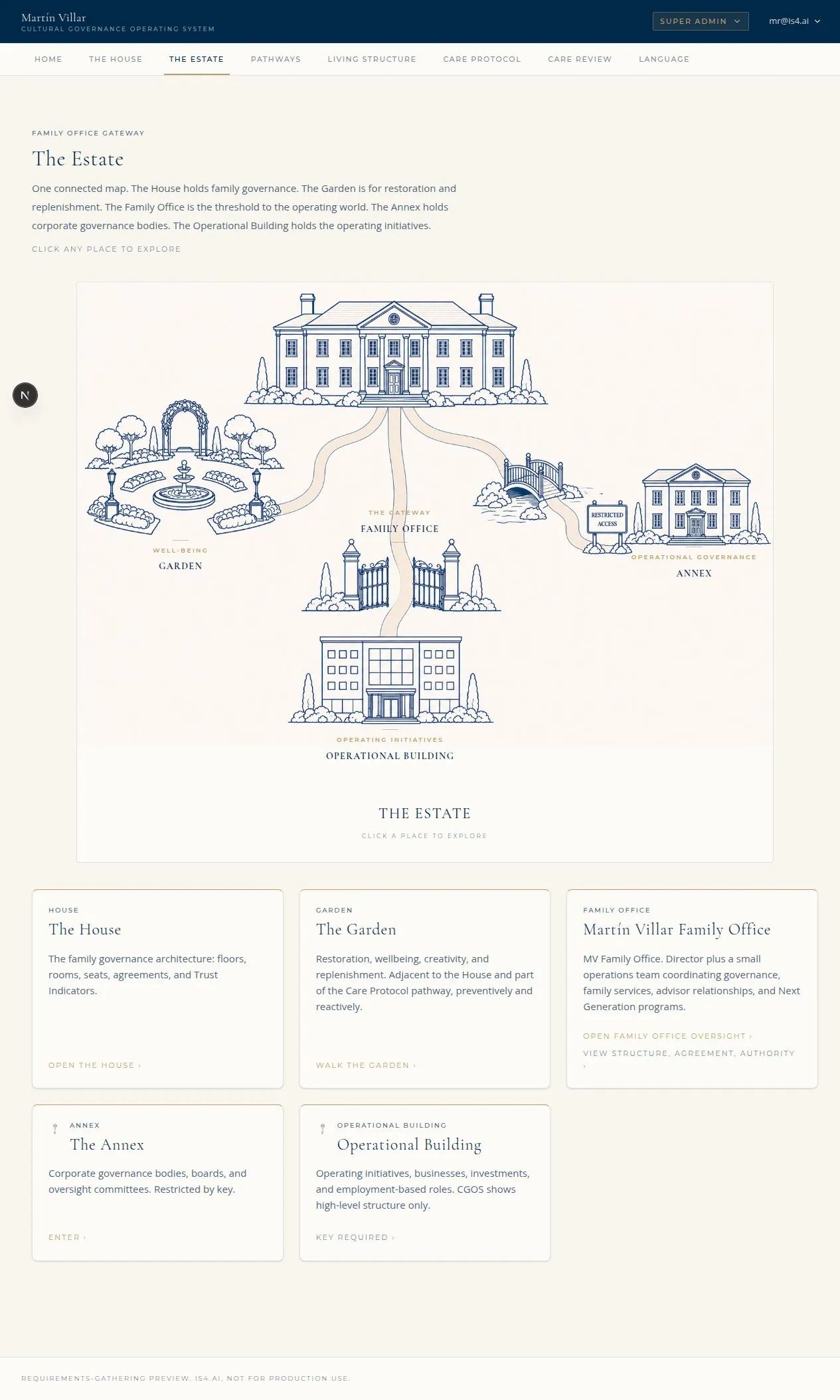
The Estate map: the House, Garden, Bridge, Annex, and Operational Building (Illustrative, from the IS4 preview environment.)
graph TD
  E[Estate] --> H[House: floors + rooms]
  E --> G[Garden]
  E --> AX[Annex: governance bodies]
  E --> OB[Operational Building]
  H -. Bridge .-> AX
Who can do this: - Annex structure (the building, its floors, and its rooms): Perpetum L3 or super-admin only. L3 alone builds the House and Estate. - Room content (each room's agreement, keys, details): L1 / L2 / L3 can edit room content. - The family-facing Restricted Access list: Perpetum L3 or super-admin.
1. The three layers of Annex information
Adding Annex information happens across three admin surfaces. Do them in this order.
| Layer | What you author | Admin surface | Who |
|---|---|---|---|
| 1. Structure | The Annex building, its floors, and its rooms (governance bodies) | House Build (/admin/house) |
L3 / super-admin |
| 2. Room detail | Each Annex room's content: the agreement that holds it, keys | Room Content (/admin/room-content) |
L1 / L2 / L3 |
| 3. Family-facing list | The "Restricted Access bodies" bullets shown on the card the family sees | Estate config (/admin/estate-config) |
L3 / super-admin |
Relationship between Layer 1 and Layer 3: the family sees a Restricted Access card when they click the Annex. It lists the governance bodies. That list comes from the Estate config "Restricted Access bodies" slot; if you leave that slot blank, it falls back automatically to the Annex room names you created in Layer 1. So at minimum, authoring Annex rooms (Layer 1) is enough to populate the card; the Estate config slot (Layer 3) lets you curate the exact wording.
2. Open the admin console
- Log in at
<slug>.cgos.casa(for exampletest-001.cgos.casa) as a super-admin or Perpetum L3. - Enter the family's admin console:
- Super-admin: open the site switcher in the top header, choose the family, then click Admin.
- Perpetum L3: go to
<slug>.cgos.casa/admin.
You will see the gold "Administering <family>" banner. 3. Use the Admin sections tab bar to open the surface you need: House Build, Room Content, or Estate config.
The public URLs are
<slug>.cgos.casa/admin/house,<slug>.cgos.casa/admin/room-content, and<slug>.cgos.casa/admin/estate-config. Do not type a/portal/prefix; the portal adds it internally and/portal/admin/...404s. Always click the tab or use/admin/....
3. Layer 1: author the Annex structure (House Build)
Open the House Build tab (/admin/house).
a. Confirm the Annex building exists
Scroll the list of buildings for one whose type is annex (the card eyebrow reads "Building - annex"). In a normally provisioned family it is already there: the Annex building is created automatically by the seed at tenant setup, so most families have one without any manual step.
KNOWN GAP (issue #13): you cannot currently add a missing Annex from the UI. The House Build screen only shows an "Add building" control when a family has zero buildings. Because every family already has a House, that control is hidden, so there is no admin button to create a second building (Annex, Garden, or Operations) once the House exists. The backend supports it; only the UI entry point is missing.
If a family is missing its Annex today: it cannot be added through the admin console. It must be created by a developer (via the seed or direct database access). Track the fix in issue #13; once that ships, this section will be updated with the in-app steps.
Once the Annex building exists, continue with floors and rooms below (those controls, Add floor and add room, are present on each existing building's card and work normally).
b. Add floors to the Annex
The Annex's two zones are Corporate Governance and Operating Initiatives. On the Annex building card, click Add floor and create the floors you need (for example a "Corporate Governance" floor and an "Operating Initiatives" floor). Use the up/down arrows to order them.
c. Add a governance body as a room
On the floor where the body belongs, click the add room control. You will be prompted to found a new governance room and name the agreement that holds it:
- Room name = the governance body (for example "Holdco Board", "Family Office Investment Committee", "OpCo Board").
- Agreement that holds this room = the named agreement or charter that gives the body its authority.
- Save. The room now appears under that Annex floor.
Repeat for every board or committee. Each room you add is one bullet the family will see on the Restricted Access card.
4. Layer 2: author each room's content (Room Content)
Open the Room Content tab (/admin/room-content) and edit each Annex room to
fill in its detail: the agreement that holds it, the keys required to enter, and
any room-level content. Annex rooms are key-gated: they are visible to the
family at card level, but entering requires the relevant key (crossing the Bridge).
Set the keys here so the right people can enter and others see the restricted card.
5. Layer 3: curate the family-facing list (Estate config)
Open the Estate config tab (/admin/estate-config) and find "Restricted
Access bodies (one per line)."
- Enter one governance body per line to control exactly what the family reads on the Restricted Access card, in the wording and order you choose.
- Leave it blank to fall back to the Annex room names from Layer 1.
Save. This text surfaces as the bullet list under the Restricted Access card.
6. What the family sees
- On the House diagram, the family clicks the Annex column. (Note: a known click-target bug means the clickable area is currently only the top header band; see issue #12.)
- They get the Restricted Access card: a title, a description, and the list of governance bodies with restricted access (your Layer 3 list, or the Annex room names as fallback).
- If no bodies are catalogued yet, the card reads "No restricted governance bodies have been catalogued for this family yet."
- Annex rooms stay key-gated: visible at card level, but entry requires the relevant key. A member without the key sees the card but cannot enter the room.
7. Quick troubleshooting
| Symptom | Likely cause | Fix |
|---|---|---|
404 at /portal/admin/house |
Wrong URL (double /portal) |
Use /admin/house, or click the House Build tab |
| No "House Build" / "Estate config" tab visible | Not super-admin or L3 | Use an L3/super-admin account; log out and in after any role change |
| Restricted Access card says "No bodies catalogued" | No Annex rooms and no Estate config list | Add Annex rooms (Layer 1) or fill the Estate config list (Layer 3) |
| Card shows room names you did not want shown | Estate config slot is blank, falling back to room names | Fill "Restricted Access bodies" in Estate config to curate the wording |
| A member cannot open an Annex room | The room is key-gated and they lack the key | Expected. Grant the key or run the key-approval process; entry never bypasses keys |
| Cannot add a floor/room under the Annex | You hold L1/L2 (room content only), not L3 | House/Estate structure is L3-only; ask an L3 or super-admin |
Appendix: model notes (for reference)
- The Annex is a building of type
annexin the house tree (lib/data/house.ts). Its rooms carry Bricks like House rooms. - The Restricted Access card derives its bodies from the Estate config slot
house.restricted_access_bodies, falling back to Annex room names (components/cgos/house/restricted-access-card.tsx). - House and Estate structure authoring is L3-only by design
(
app/portal/admin/house/page.tsx); room content is editable by L1/L2/L3. - Annex and Operational rooms are reached across the Bridge and remain key-gated; Care Protocol state never bypasses a key check.