Library and Glossary / Reference (Admin Guide)
Two content surfaces teach the family the system: the Library (curated resources) and the Glossary / Reference (the language, on the Reference / Language page). Both are authored by Perpetum from the admin console; the family reads them.
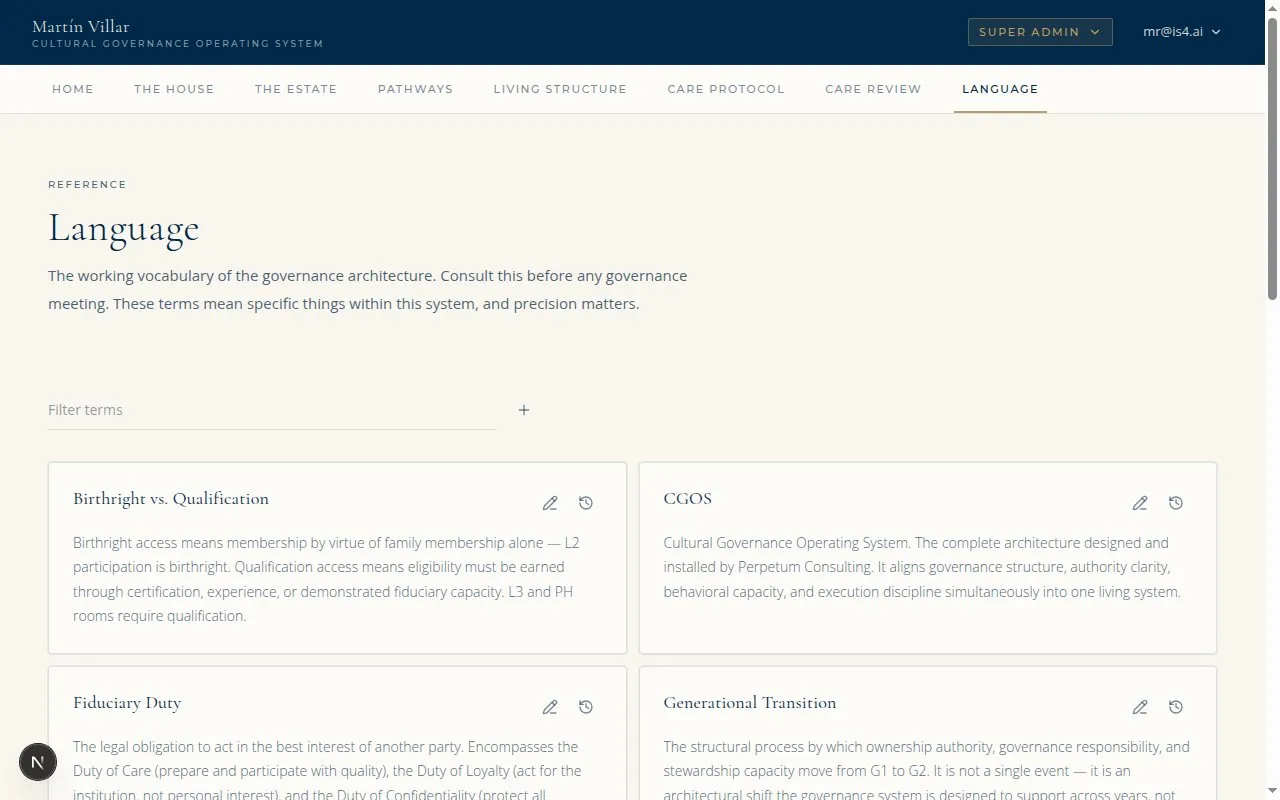
The Reference / Language page: the alphabetized Glossary the family reads (Illustrative, from the IS4 preview environment.)
Who can do this: - Library entries: admin tier (L1 / L2 / L3) can author. - Glossary terms: Perpetum L3 only.
1. The Glossary (Reference / Language page)
The Glossary is a single flat, alphabetized list. Each entry is just a term and a definition. There are no categories, no nesting, no example sentences, and no related-term links: a term has a name and a definition, and nothing more.
To author terms:
- Open the Glossary tab (
/admin/glossary). (L3 only.) - Add a term: enter the term (the heading) and its definition (a plain- language paragraph).
- Edit a definition or delete a term as needed. The list re-sorts alphabetically by term automatically.
One source of wording. The definitions on the Reference / Language page match the language canon exactly; do not paraphrase or restate a definition in different words elsewhere. The Glossary is the single source.
Glossary terms also back the Trust Indicator glossary links: a term defined here is what those headers link to, so first-time users can learn each term in context.
2. The Library
The Library has two collections, selected by tabs:
- Perpetum Library (shown first by default): curated by Perpetum.
- Family Library: the collection the family curates for itself.
Within the open collection, entries are grouped under four standard categories, each its own labeled section:
| Category (section title) | Card eyebrow (kind) |
|---|---|
| Family Workshops | Workshop |
| Articles | Reading |
| Podcasts | Listening |
| Videos | Watching |
Each entry renders as a link card (eyebrow + title + a short meta line). Selecting a card opens its link in a new tab; the material plays or opens externally (a private resource may link through a private channel or an authenticated Zoom cloud link).
To author Library entries:
- Open the Library tab (
/admin/library). (Admin tier.) - Add an entry, choosing:
- Collection (Perpetum or Family),
- Category (Family Workshops / Articles / Podcasts / Videos),
- Title,
- Link (the URL the card opens).
- Edit or remove entries from the same surface.
Empty and under-construction states. A category with no entries shows a calm empty state, not a blank panel. A family collection that has not been filled shows an under-construction note explaining the family curates it for itself and that entries link out. These render automatically; you do not author them.
3. Where the family reads these
- Library:
/library(the family switches the Perpetum / Family tabs and opens category sections). Reachable by every family role, including Next Generation and In-Laws, plus the Library card in "Where to Go Next" on the Dashboard. - Glossary / Reference: the Reference / Language page (the alphabetized term list), and via the glossary links on Trust Indicator headers.
4. Quick troubleshooting
| Symptom | Likely cause | Fix |
|---|---|---|
| No "Glossary" tab | Not L3 | Glossary authoring is L3-only |
| No "Library" tab | Not admin tier | Library authoring is L1 / L2 / L3 |
| A Library card does not open the resource | Link missing or wrong | Edit the entry and fix the Link URL |
| A category looks empty | No entries in that category | Add entries, or expect the calm empty state |
| A Family Library collection shows "under construction" | The family has not filled it | Expected until entries are added |
| A glossary definition reads differently in two places | Wording drift | The Glossary is the single source; align other copy to it, do not paraphrase |
| A term is out of order | None; the list auto-sorts | The list is always alphabetical by term |