How to Add Files to the Family Intelligence Archive
The Family Intelligence Archive is the family's in-portal governance library: the agreements that found the rooms (constitution, trust agreements, founding and governance agreements) and the quarterly Pathway PDFs (Individual Pathway, Relational Blueprint, Soul Print). This manual is the step-by-step procedure for adding, replacing, and removing those documents.
Who can do this: Only Perpetum staff, specifically a Perpetum L3 steward or a super-admin. No other role (including a family's own admins, L2, or any family member) can add files. This is by design: the Archive is a Perpetum-curated collection, not a self-serve upload area for the family.
1. Before you start: what the Archive accepts
The upload form enforces hard rules. Know them before you collect files from the family, or the upload will be rejected.
| Rule | Value | What happens if you break it |
|---|---|---|
| File format | PDF only | Non-PDF files are rejected with "Only PDF files are accepted." |
| File size | 20 MB maximum | Larger files are rejected with "File too large. Limit is 20 MB." |
| Empty files | Not allowed | Rejected with "Empty file." |
| Document type | One of 7 fixed types (see below) | The form only offers these seven |
If a family hands you a Word doc, a scan, or photos: convert or combine into a single PDF under 20 MB first. The Archive is deliberately PDF-only so every governance document reads identically in the in-portal viewer and never leaves the portal.
The seven document types
| On-screen label | Use it for |
|---|---|
| Family Constitution | The family's founding constitution |
| Trust Agreement | A trust agreement |
| Founding Agreement | The agreement that founds a room |
| Governance Agreement | A board charter, operating mandate, or governance doc |
| Individual Pathway | A person's quarterly Individual Pathway PDF |
| Relational Blueprint | The family's Relational Pathway or blueprint PDF |
| Soul Print | A person's Soul Print PDF |
2. Open the Archive admin screen
The fastest way in is the menu, not a typed URL.
- Log in at the family's portal,
<slug>.cgos.casa(for exampletest-001.cgos.casa), as a super-admin or Perpetum L3. - Enter the family's admin console:
- Super-admin: open the site switcher in the top header, choose the family, then click Admin.
- Perpetum L3: go to
<slug>.cgos.casa/admin.
You will see a gold "Administering <family>" banner, confirming you are in the per-house admin console. 3. In the horizontal Admin sections tab bar under that banner, click the Archive tab. (Only L3 and super-admins see this tab.)
That lands you on the Archive admin screen. Its direct address, if you ever need to type or bookmark it, is:
<slug>.cgos.casa/admin/archive(for exampletest-001.cgos.casa/admin/archive)Do NOT type
/portal/admin/archive. That path 404s for everyone: the portal internally rewrites house URLs by adding/portal, so/portal/admin/archivebecomes/portal/portal/admin/archive, which does not exist. Always use/admin/archive(or just click the Archive tab).Still seeing a 404 on the correct URL? Then your session is not super-admin or L3 for this family. Two common causes: - You are logged in with a lower-privilege role: use an L3 or super-admin account for this family. - Your role changed during the session: log out and back in, because the privilege level is read at login. (If a super-admin flag was lost, a Perpetum operator can restore it with
bin/cgos user promote --email <you>.)
The screen has two parts: an "Add a document" form at the top, and a list of "Documents on file" below it (each with edit, replace, and remove controls).
3. Add a new document
In the "Add a document" form:
- Title: the name the family will see (required, up to 300 characters). Use the document's real name, for example "Villar Family Constitution (2026)".
- Document type: pick one of the seven types above.
- Access scope: decide who in the family may open this document.
- Family-wide: every family member who has the Archive surface can read it. Use for the constitution and broadly-shared governance docs.
- Room-scoped: only people tied to a specific room can read it. A Room picker appears; choose the room. Use for a room's founding agreement.
- Person-scoped: only one person can read it. A Person picker appears; choose the person. Use for a private document such as someone's Soul Print or Individual Pathway.
- PDF: choose the file (PDF only, 20 MB max).
- Click Add document. On success you will see "Added." and the form clears.
Access is enforced everywhere. A document scoped away from a reader is never shown to them and never served: it simply does not appear in their list. Set the scope carefully; for legally or personally sensitive documents (trusts, Soul Prints), prefer the narrowest scope that still works.
4. Replace a document with a new version
To upload a corrected or updated file for a document that already exists:
- Find the document in "Documents on file."
- In its "Replace with a new version" section, choose the New PDF.
- Click Replace. You will see "Saved."
The new file becomes the current version. The prior file is retained on disk and in the version history: replacing never destroys the old document.
5. Edit a document's details or access
In a document's row you can change its Title, Document type, and Access scope (and the room or person it is tied to). Click Save changes to apply. This does NOT change the file itself; use Replace (section 4) for that.
6. Remove a document
Click Remove on a document's row. This is a soft removal: the document leaves every family member's list immediately, but the row and the file are retained (nothing is ever truly deleted) and the full version history stays intact. Removal can be undone by a developer or operator if needed.
7. Where the family sees what you added
- Archive page: family members read documents at
<slug>.cgos.casa/archive, a search field plus their access-scoped list, opened in a built-in PDF viewer.
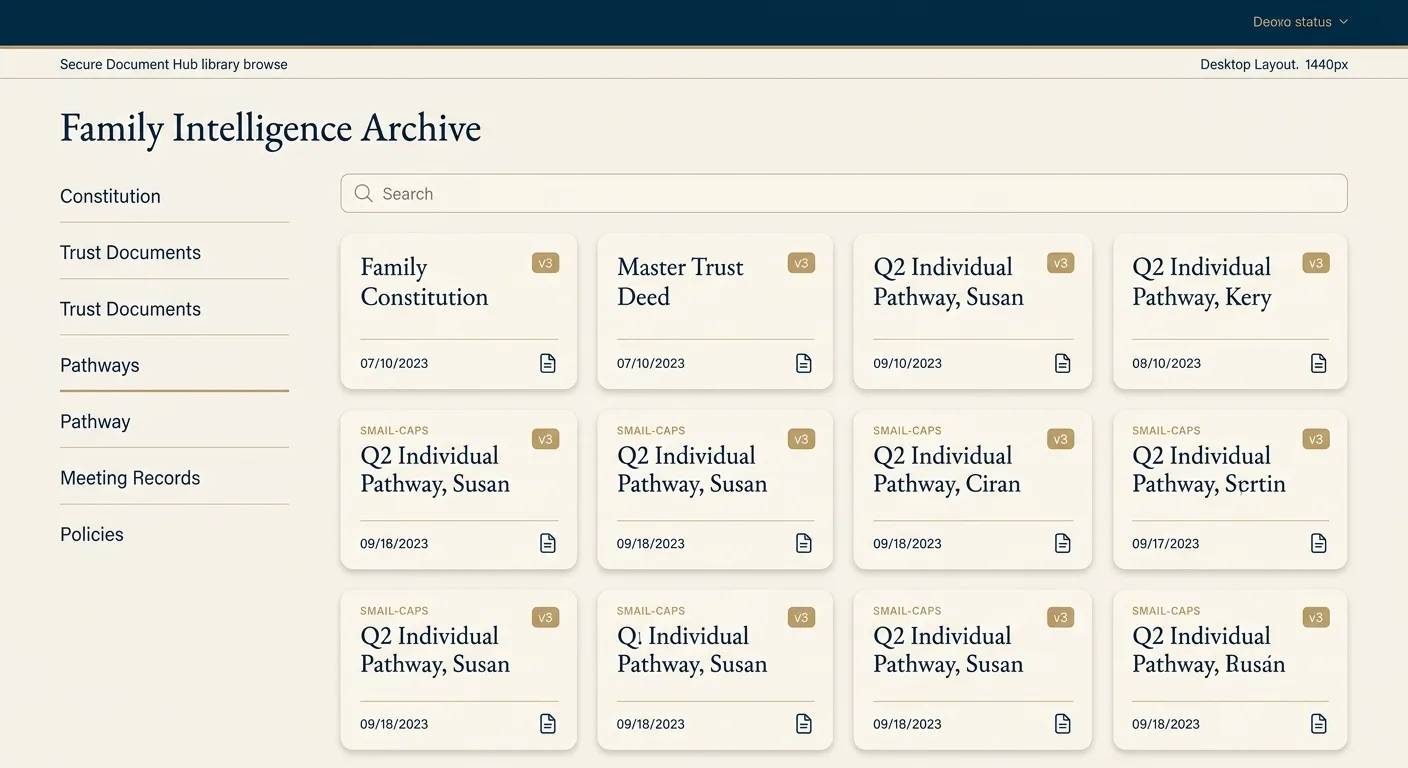
The Family Intelligence Archive as the family reads it: a searchable, access-scoped list (Illustrative, from the IS4 preview environment.)
The file is read on screen only; it never downloads to the reader's machine. - From a Room Page: a room-scoped founding agreement also opens from the room itself (the Room Page links into the same viewer), so a room's authority is always one click from the room.
8. Quick troubleshooting
| Symptom | Likely cause | Fix |
|---|---|---|
404 at /portal/admin/archive |
Wrong URL (double /portal) |
Use /admin/archive, or click the Archive tab |
404 at the correct /admin/archive |
Not super-admin or L3 for this family | Use an L3/super-admin account; log out and in after any role change |
| "Only PDF files are accepted." | File is not a PDF | Convert to PDF and re-upload |
| "File too large. Limit is 20 MB." | PDF over 20 MB | Compress or split the PDF |
| "A room-scoped document needs a room." | Scope is room but no room chosen | Pick a room (or change scope to Family-wide) |
| "A person-scoped document needs a person." | Scope is person but no person chosen | Pick a person (or change scope) |
| Family member says "I can't see the document" | Scope excludes them | Check the document's Access scope and room or person linkage |
| Family member asks where the upload button is | There is none for them, by design | Explain: documents are added by the Perpetum team; the family reads them |
Appendix: what happens under the hood (for reference)
- Every upload is stored content-addressed (hashed by SHA-256) in the in-portal file store. Identical files are de-duplicated automatically.
- Every add, replace, edit, and remove is versioned and audit-logged: the Archive keeps a complete change history and never overwrites or deletes a file.
- The admin screen is gated on the
managepermission for thearchiveDocumentresource, which only Perpetum L3 holds (super-admin bypasses the check). This is defined inlib/permissions-matrix.ts.